.zip · .7z · .rar
Open an archive of OTDR traces without unpacking it
Drop the archive into the window and the application shows which traces are inside. Tick the ones you need or open them all: they go into the list the same way as files opened one by one.
No unpackingNo sign-upOn a phone too
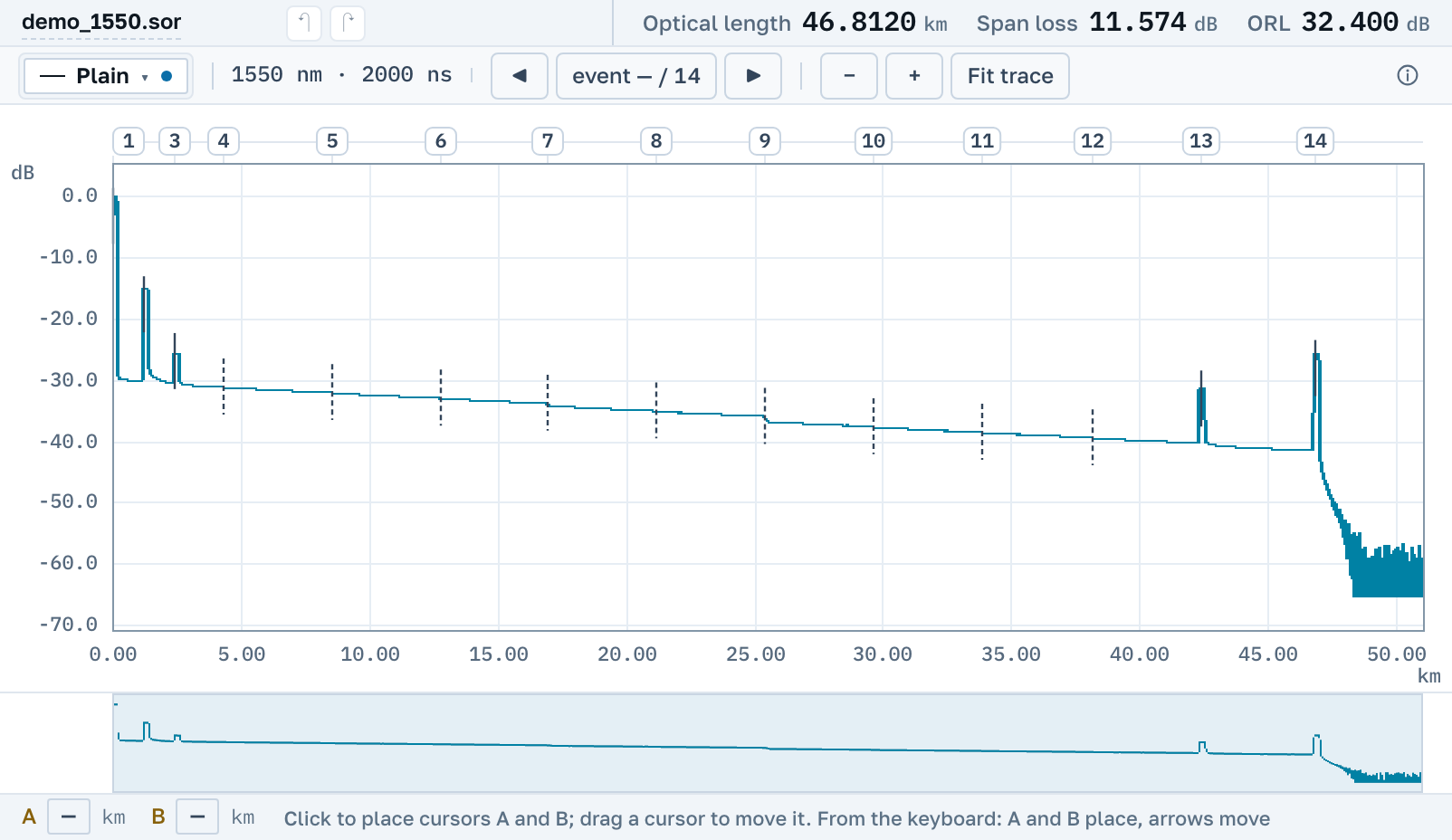
Into the browser window, or with the Open button. .zip, .7z and .rar all work. A folder is dragged into the window from a computer as it is.
The application lists the measurements in the archive. Open all of them or only the ones you ticked.
Each trace becomes a file of its own in the list: you can view it, compare it with its neighbours and print it to PDF.
What is read inside an archive
Every format that opens on its own opens from inside an archive. A folder of traces can be dropped into the window as it is, with no archive: it opens the same way.
Subfolders and nested archives
A trace card is named by its path inside the archive, for example "Side A/001.sor", so the same file name in two folders does not get mixed up. An archive lying inside an archive is opened too.
Not only .sor
.trc, .msor and other instrument formats are read from an archive the same way as when they lie on their own.
Documents next to the traces
A PDF datasheet, an Excel table or a photo does not get in the way. The application takes the measurements and tells you the other files are not traces.
There is nothing to unpack
.rar and .7z often need a separate program, and on a phone even a .zip is awkward to unpack. Here the archive opens by link in the browser on any system, with nothing to install and no sign-up.
When the archive is large
The application names every trace that did not fit, with the reason, and drops nothing in silence. How many files fit and how large they can be is in the manual.
Nearby
.sor file→
Several traces on one chart→
SOR to PDF: an OTDR trace report→
By manufacturer